

Step‑by‑Step Guide: Generate PowerPoint Slides Using Copilot Studio Agent
<h2> Introduction </h2> <p>Microsoft Copilot Studio allows you to create AI agents that automate tasks, including generating PowerPoint presentations. This guide walks you through creating a Copilot Studio agent that generates PowerPoint (PPT) slides automatically based on user input.</p> <h1> Prerequisites </h1> <p>Before you begin, ensure you have:</p> <ul> <li>Microsoft 365 account</li> <li>Access to Microsoft Copilot Studio</li> <li>Power Automate access</li> <li>SharePoint or OneDrive access (for storing generated PPT files)</li> <li>PowerPoint Online access</li> </ul> <h1> Step 1: Access Microsoft Copilot Studio </h1> <ol> <li>Go to Microsoft Copilot Studio</li> <li>Sign in with your Microsoft 365 account</li> <li>Click <strong>Create</strong> or <strong>New Copilot</strong> </li> <l
Introduction
Microsoft Copilot Studio allows you to create AI agents that automate tasks, including generating PowerPoint presentations. This guide walks you through creating a Copilot Studio agent that generates PowerPoint (PPT) slides automatically based on user input.
Prerequisites
Before you begin, ensure you have:
-
Microsoft 365 account
-
Access to Microsoft Copilot Studio
-
Power Automate access
-
SharePoint or OneDrive access (for storing generated PPT files)
-
PowerPoint Online access
Step 1: Access Microsoft Copilot Studio
-
Go to Microsoft Copilot Studio
-
Sign in with your Microsoft 365 account
-
Click Create or New Copilot
-
Enter the following:
-
Copilot Name (Example: PPT Generator Agent)
-
Description
-
Language
Click Create
Step 2: Define Agent Purpose
After creating the Copilot:
-
Navigate to Instructions or Overview
-
Add agent instructions such as:
Example:
"You are a presentation assistant that creates professional PowerPoint slides based on user topics, including title slide, agenda, and content slides."
- Save changes
Step 3: Create Input Variables
Create variables to collect user input:
-
Go to Topics
-
Click + New Topic
-
Name: "Generate PPT"
Create the following variables:
-
Presentation Topic
-
Number of Slides
-
Audience Type
-
Tone (Professional, Educational, Executive)
Example Questions:
-
What is your presentation topic?
-
How many slides do you want?
-
Who is the target audience?
-
What tone should the presentation follow?
Step 4: Add Generative AI Node
-
Add Create Generative Answer node
-
Configure Prompt:
Example Prompt:
"Create a PowerPoint presentation outline for {Topic}. Generate {Number of Slides} slides. Include:
-
Title Slide
-
Agenda
-
Content Slides
-
Summary Slide
Audience: {Audience} Tone: {Tone}
Return in structured slide format."
- Save configuration
Step 5: Create Power Automate Flow
Now create automation to generate PPT file.
-
Open Power Automate
-
Click Create
-
Select Instant Cloud Flow
-
Choose trigger:
"When Copilot calls a flow"
-
Add inputs:
-
Topic
-
Slide Count
-
Content
Step 6: Generate PowerPoint File
Inside Power Automate:
Option 1: Use PowerPoint Template
-
Create PowerPoint Template in OneDrive/SharePoint
-
Add placeholders:
-
Title
-
Content
-
Bullet Points
-
In Power Automate:
Add action:
"Populate Microsoft PowerPoint Template"
Map:
-
Title → Topic
-
Content → Generated Content
Step 7: Save PowerPoint File
- Add action:
"Create File"
-
Configure:
-
Location: OneDrive or SharePoint
-
File Name: {Topic}.pptx
-
File Content: Generated PPT
Step 8: Return File to Copilot
- Add action:
"Respond to Copilot"
-
Return:
-
File URL
-
Download Link
Step 9: Connect Flow to Copilot Studio
-
Go back to Copilot Studio
-
Add Call Action Node
-
Select Power Automate Flow
-
Map variables:
-
Topic
-
Slide Count
-
Generated Content
Step 10: Test the Agent
-
Click Test Copilot
-
Example Input:
"Create a 5-slide presentation about Artificial Intelligence in Healthcare"
-
Agent will:
-
Generate outline
-
Create PowerPoint
-
Provide download link
Example Output Structure
Slide 1 — Title Slide
- Artificial Intelligence in Healthcare
Slide 2 — Agenda
-
Introduction
-
Use Cases
-
Benefits
-
Challenges
-
Summary
Slide 3 — Use Cases
-
Medical Imaging
-
Predictive Analytics
-
Automation
Slide 4 — Benefits
-
Improved Accuracy
-
Faster Diagnosis
-
Cost Reduction
Slide 5 — Summary
- Key Takeaways
Best Practices
-
Use PowerPoint templates for consistent branding
-
Limit slides to 5–10 for best results
-
Use structured prompts
-
Store templates in SharePoint for reuse
Advanced Enhancements
You can enhance the agent by adding:
-
Corporate branding
-
Logo insertion
-
Theme selection
-
Multi-language support
-
Speaker notes generation
Troubleshooting
Issue: PPT not generating
Solution:
-
Check Power Automate permissions
-
Verify template placeholders
-
Confirm Copilot variables mapping
Issue: Slides empty
Solution:
-
Improve prompt instructions
-
Validate generated content variable
Conclusion
Using Copilot Studio with Power Automate, you can build an AI-powered PPT generator that creates professional slides automatically. This reduces manual work and standardizes presentation creation across teams.
Optional: Sample Prompt Template
"Create a professional {Slide Count} slide presentation about {Topic}.
Audience: {Audience} Tone: {Tone}
Include:
-
Title Slide
-
Agenda
-
Key Points
-
Examples
-
Summary
Return bullet-based slide content."
Example Flow Diagram
Copilot Studio → Power Automate → PowerPoint Flow
User │ ▼ Copilot Studio Agent │ │ Collect Inputs │ - Topic │ - Audience │ - Slide Count │ ▼ Generative AI Node │ │ Generate Slide Content ▼ Call Power Automate Flow │ ▼ Power Automate │ ├── Get PPT Template (SharePoint / OneDrive) │ ├── Parse Generated Content │ ├── Populate PowerPoint Template │ ├── Create New PPT File │ └── Return File Link │ ▼ Copilot Studio │ ▼ User Receives Download LinkUser │ ▼ Copilot Studio Agent │ │ Collect Inputs │ - Topic │ - Audience │ - Slide Count │ ▼ Generative AI Node │ │ Generate Slide Content ▼ Call Power Automate Flow │ ▼ Power Automate │ ├── Get PPT Template (SharePoint / OneDrive) │ ├── Parse Generated Content │ ├── Populate PowerPoint Template │ ├── Create New PPT File │ └── Return File Link │ ▼ Copilot Studio │ ▼ User Receives Download LinkEnter fullscreen mode
Exit fullscreen mode
Best Prompt for PPT Generation
Use this Production‑Ready Prompt inside Copilot Studio:
Enterprise PPT Generation Prompt
You are a professional presentation generator.
Create a {Slide Count} slide PowerPoint presentation.
Topic: {Topic} Audience: {Audience} Tone: {Tone}
Requirements:
- Slide 1: Title Slide
- Slide 2: Agenda
- Slide 3+: Content Slides
- Final Slide: Summary
Formatting Rules:
- Use short bullet points
- Maximum 5 bullets per slide
- Use professional language
- Avoid long paragraphs
- Include actionable insights
Return Output Format:
Title: Subtitle:
Agenda:
- Item 1
- Item 2
Slide 1 Title: Slide 1 Content:
- Bullet 1
- Bullet 2
Slide 2 Title: Slide 2 Content:
Summary:
- Key Takeaway 1
- Key Takeaway 2
Also Generate:
- Speaker Notes
- Suggested Visual per Slide`
Enter fullscreen mode
Exit fullscreen mode
Advanced Enterprise Architecture
Enterprise‑Grade Copilot PPT Generator Architecture
┌─────────────────────┐ │ User │ └─────────┬───────────┘ │ ▼ ┌─────────────────────┐ │ Copilot Studio │ │ AI Agent │ └─────────┬───────────┘ │ ▼ ┌─────────────────────┐ │ Azure OpenAI / │ │ Generative AI Node │ └─────────┬───────────┘ │ ▼ ┌─────────────────────┐ │ Power Automate │ │ Flow │ └───────┬─────────────┘ │ ┌───────────────────┼────────────────────┐ ▼ ▼ ▼┌─────────────────────┐ │ User │ └─────────┬───────────┘ │ ▼ ┌─────────────────────┐ │ Copilot Studio │ │ AI Agent │ └─────────┬───────────┘ │ ▼ ┌─────────────────────┐ │ Azure OpenAI / │ │ Generative AI Node │ └─────────┬───────────┘ │ ▼ ┌─────────────────────┐ │ Power Automate │ │ Flow │ └───────┬─────────────┘ │ ┌───────────────────┼────────────────────┐ ▼ ▼ ▼┌──────────────┐ ┌──────────────┐ ┌──────────────┐ │ SharePoint │ │ OneDrive │ │ Dataverse │ │ Templates │ │ Output Files │ │ Metadata │ └──────┬───────┘ └──────┬───────┘ └──────┬───────┘ │ │ │ └──────────┬────────┴──────────┬──────┘ ▼ ▼ ┌──────────────┐ ┌──────────────┐ │ PowerPoint │ │ Approval Flow │ │ Generation │ │ (Optional) │ └──────┬───────┘ └──────┬───────┘ │ │ └──────────┬──────┘ ▼ ┌─────────────────────┐ │ Generated PPT │ │ Download Link │ └─────────────────────┘`
Enter fullscreen mode
Exit fullscreen mode
Enterprise Enhancements
Optional Enterprise Features
Governance
-
Approval workflow before publishing
-
Template version control
-
Role‑based access
Intelligence
-
Pull data from SharePoint
-
Pull data from Excel
-
Pull data from APIs
Automation
-
Auto email presentation
-
Auto save to Teams
-
Auto naming convention
Branding
-
Multiple templates
-
Department‑based templates
-
Theme selection
Real Enterprise Example
User Request:
"Create Sales Presentation for Q4"
System Automatically:
-
Detect Department = Sales
-
Select Sales Template
-
Pull Sales Data from SharePoint
-
Generate Slides
-
Send for Approval
-
Deliver Final PPT
Recommended Enterprise Setup
Best Practice Stack:
-
Copilot Studio
-
Power Automate
-
SharePoint Templates
-
Dataverse
-
Azure OpenAI
-
Microsoft Teams Integration
Hope you enjoy the session.
Please leave a comment below if you have any further questions.
Happy Sharing !!! Keep Learning | Spread Knowledge | Stay blessed |
DEV Community
https://dev.to/seenakhan/step-by-step-guide-generate-powerpoint-slides-using-copilot-studio-agent-10l7Sign in to highlight and annotate this article

Conversation starters
Daily AI Digest
Get the top 5 AI stories delivered to your inbox every morning.
More about
versionproductfeature
Steering Might Stop Working Soon
Steering LLMs with single-vector methods might break down soon, and by soon I mean soon enough that if you're working on steering, you should start planning for it failing now . This is particularly important for things like steering as a mitigation against eval-awareness. Steering Humans I have a strong intuition that we will not be able to steer a superintelligence very effectively, partially for the same reason that you probably can't steer a human very effectively. I think weakly "steering" a human looks a lot like an intrusive thought. People with weaker intrusive thoughts usually find them unpleasant, but generally don't act on them ! On the other hand, strong "steering" of a human probably looks like OCD, or a schizophrenic delusion. These things typically cause enormous distress, a

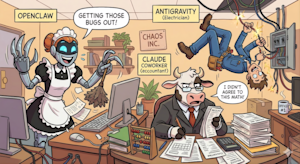
Claude, OpenClaw and the new reality: AI agents are here — and so is the chaos
The age of agentic AI is upon us — whether we like it or not. What started with an innocent question-answer banter with ChatGPT back in 2022 has become an existential debate on job security and the rise of the machines. More recently, fears of reaching artificial general intelligence (AGI) have become more real with the advent of powerful autonomous agents like Claude Cowork and OpenClaw . Having played with these tools for some time, here is a comparison. First, we have OpenClaw (formerly known as Moltbot and Clawdbot). Surpassing 150,000 GitHub stars in days, OpenClaw is already being deployed on local machines with deep system access. This is like a robot “maid” (Irona for Richie Rich fans, for instance) that you give the keys to your house. It’s supposed to clean it, and you give it th
Knowledge Map
Connected Articles — Knowledge Graph
This article is connected to other articles through shared AI topics and tags.
More in Products


Claude, OpenClaw and the new reality: AI agents are here — and so is the chaos
The age of agentic AI is upon us — whether we like it or not. What started with an innocent question-answer banter with ChatGPT back in 2022 has become an existential debate on job security and the rise of the machines. More recently, fears of reaching artificial general intelligence (AGI) have become more real with the advent of powerful autonomous agents like Claude Cowork and OpenClaw . Having played with these tools for some time, here is a comparison. First, we have OpenClaw (formerly known as Moltbot and Clawdbot). Surpassing 150,000 GitHub stars in days, OpenClaw is already being deployed on local machines with deep system access. This is like a robot “maid” (Irona for Richie Rich fans, for instance) that you give the keys to your house. It’s supposed to clean it, and you give it th

Discussion
Sign in to join the discussion
No comments yet — be the first to share your thoughts!